
Custom Code Snippets
Applies to Plans: Pro, Ultimate
This tutorial will show you the different custom code snippets that can be added to the Custom Code feature to customize your pop-up. You'll need either the Pro or Ultimate plan to access the Custom Code feature.
How to Add a Code Snippet
-
To add a code snippet, click on the Setup tab.

-
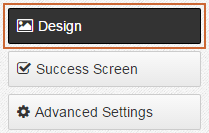
Make sure you're on the Design page.
-
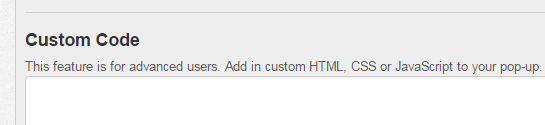
Paste in the appropriate code snippet in the Custom Code section and click the Save button.
- Preview page.
Code Snippets
Move Signup Form Up
Code Snippet
<style type="text/css">
html, body {
overflow-x: hidden;
overflow-y: hidden;
position: fixed;
}
#form {
bottom: 20%;
}
</style>
Customization Instructions
Change the 20% value to adjust how far the signup form will move up. The greater the value the more the signup form will move up.Change Font of Signup Form
-
To change the font of the signup form you'll first need to select a Google Font from here:https://www.google.com/fonts.
-
Click on the Add to Collection button for your selected font.

-
Click on the Use button.

-
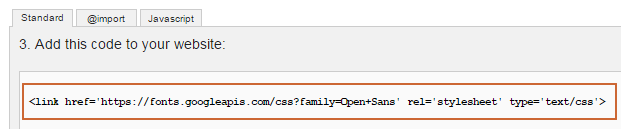
Copy the code in section 3 and paste it into the Custom Code section.
-
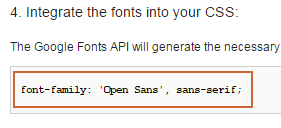
Copy the code in section 4.
-
Add that code to the code snippet below.
<style type="text/css">
input[type="text"], input[type="submit"] {
font-family: 'Open Sans', sans-serif;
}
</style>
Note: Replace font-family: 'Open Sans', sans-serif; with the appropriate code in section 4.
Full Code Snippet Example
<link href='https://fonts.googleapis.com/css?family=Open+Sans' rel='stylesheet' type='text/css'>
<style type="text/css">
input[type="text"], input[type="submit"] {
font-family: 'Open Sans', sans-serif;
}
</style>
0 Comments